

How to Install HobbyTS
How to open HobbyTS in your browser, sign in, add it to your home screen as a PWA, and set up notifications — no app store needed.
No app store needed
HobbyTS runs directly in your browser. You can also install it on your phone's home screen for an app-like experience — it works on iPhone and Android without going through the App Store or Google Play.
Step 1. Open HobbyTS
Go to hobbyts.com in your browser. Safari on iPhone and Chrome on Android both work well.
Step 2. Sign in
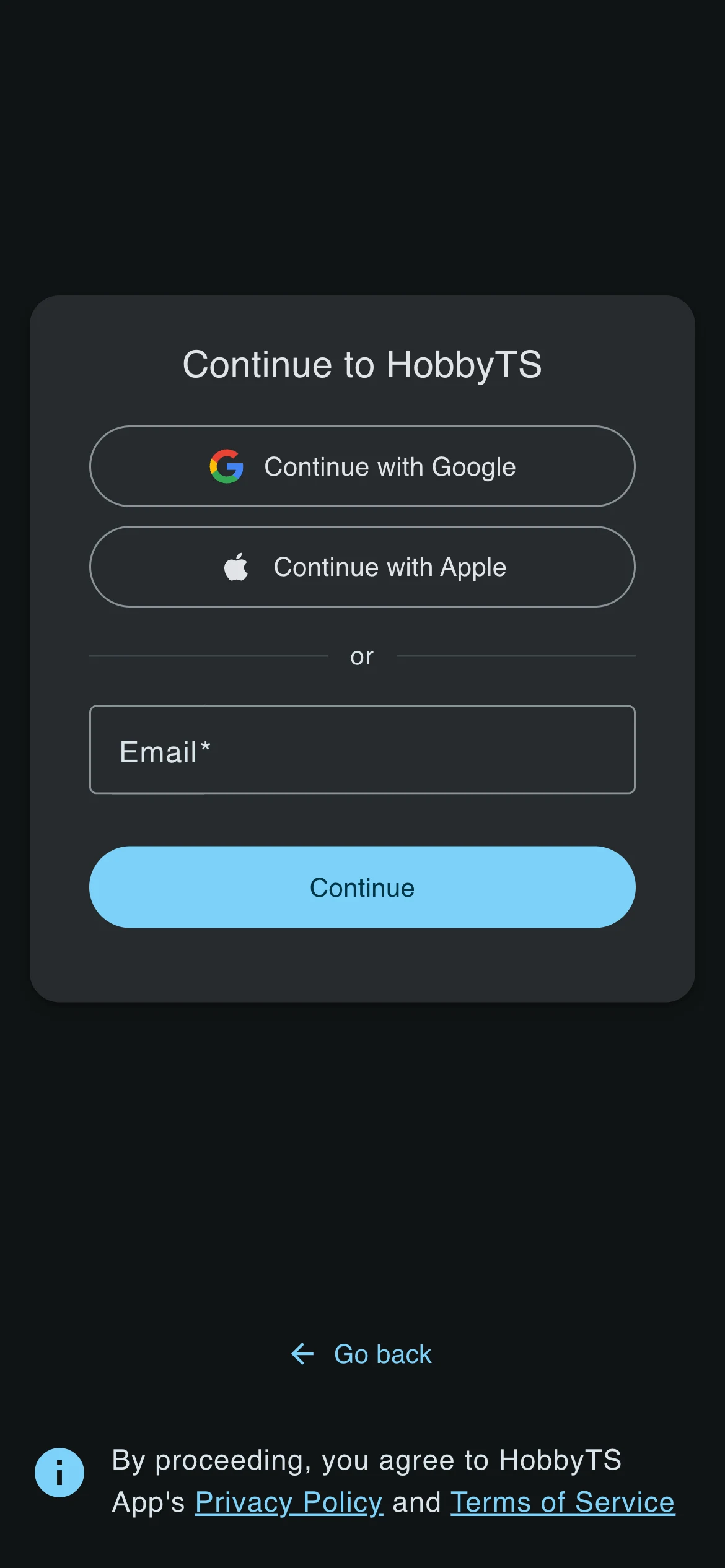
Tap Sign in and choose one of the available options:
- Continue with Google
- Continue with Apple
- Email and password
Pick whichever you use most. Your account is created automatically on first sign-in.
Step 3. Set up your profile
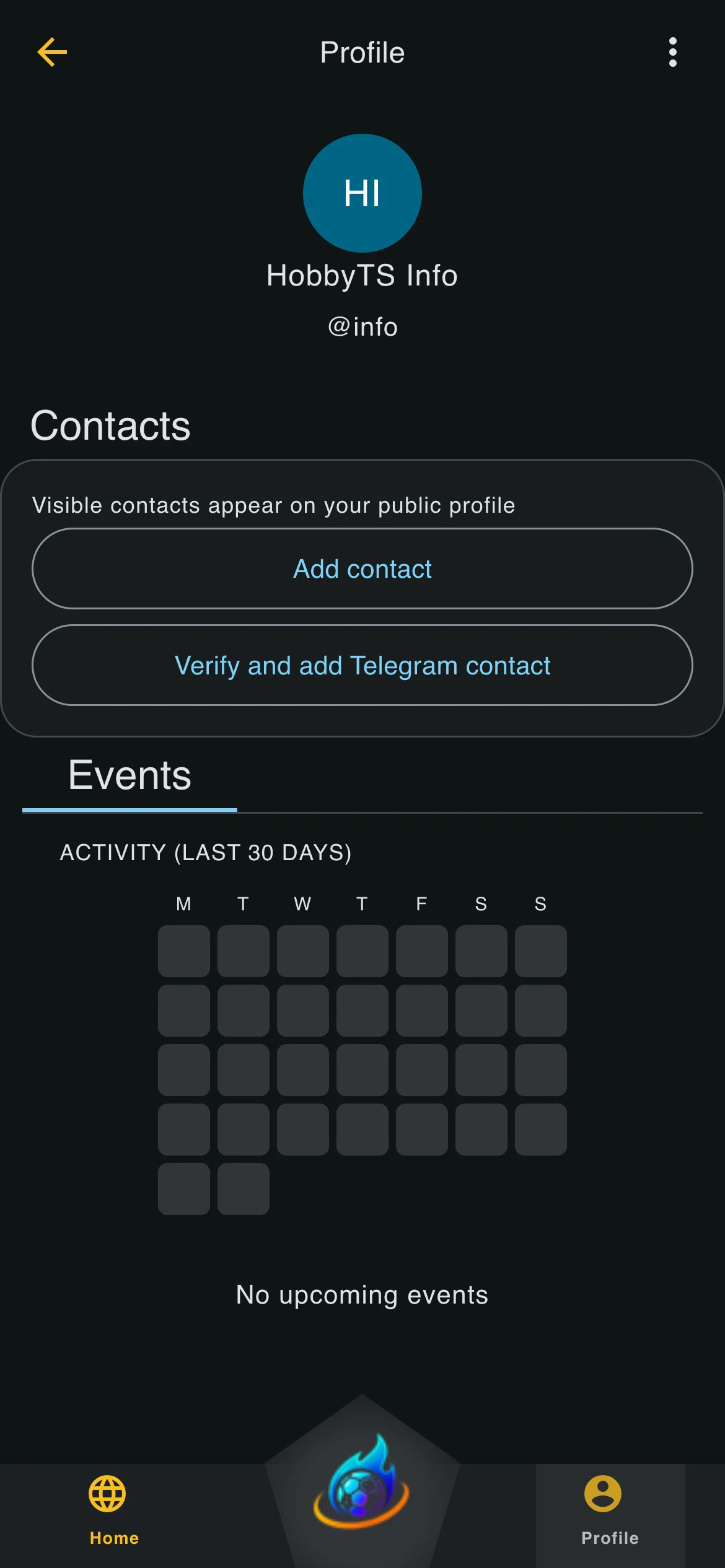
After signing in, complete your profile:
- Display name and photo — shown to other players and organisers
- City — used to show you local events (currently Lviv for Ukrainian users)
- Contacts — add a visible contact (phone number, Telegram handle, or other) so organisers can reach you
You can update all of this later in Settings.
Step 4. Add HobbyTS to your home screen
Optional but recommended. Once installed, HobbyTS opens full-screen like a native app, loads faster, and stays one tap away.
On Android (Chrome)
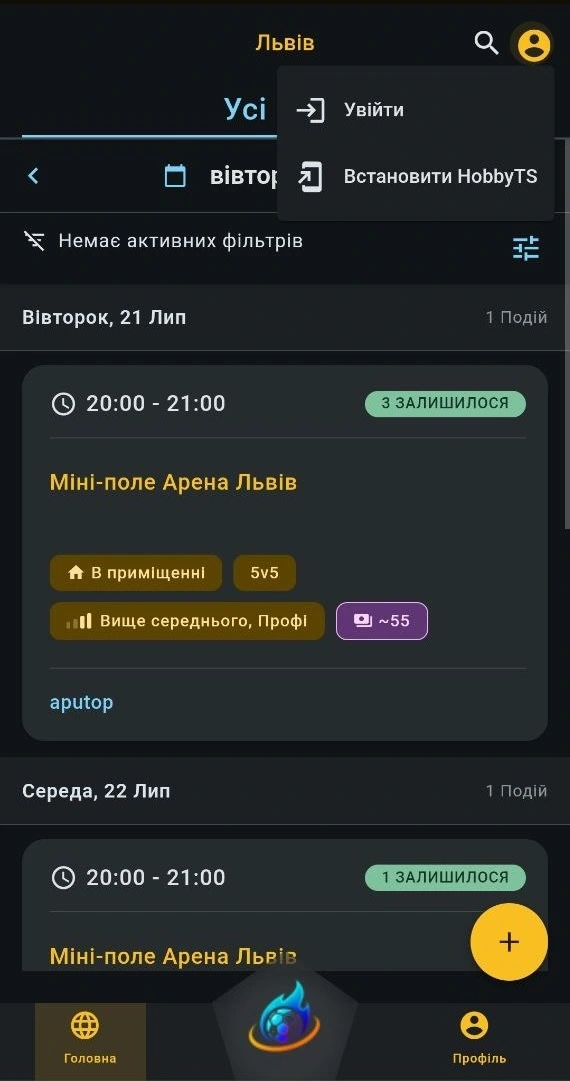
Tap the user menu icon in the top-right corner of the app — you will see an Install HobbyTS option in the menu.
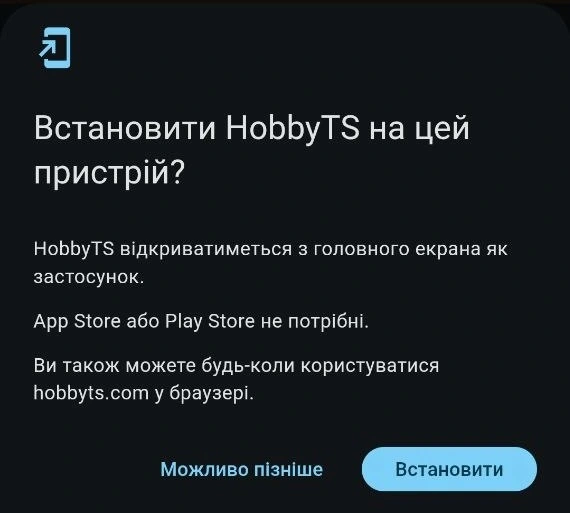
Tap it and confirm in the dialog that appears.
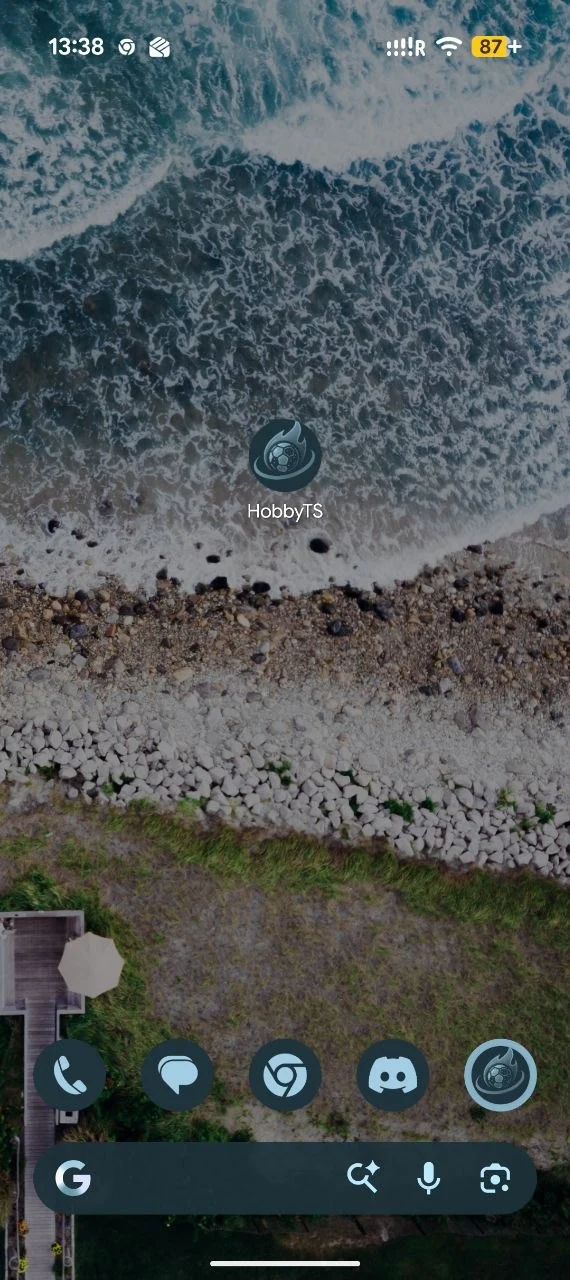
HobbyTS will appear on your home screen and dock.
On iPhone (Safari)
- Open hobbyts.com in Safari
- Tap the Share button at the bottom (the square with an arrow pointing up)
- Scroll down and tap Add to Home Screen
- Tap Add in the top-right corner
Step 5. Enable notifications
HobbyTS supports browser push notifications. A permission prompt appears after you publish your first event. Tap Allow when prompted. You can change this later in your browser notification settings.
FAQ
Is HobbyTS in the App Store or Google Play?
Not yet. Use the install steps above to get the same experience without an app store.
Does it work on desktop?
Yes. HobbyTS works in any modern desktop browser.
Do I need to enable notifications?
No, but recommended. Without them you will need to check the app manually for game updates and join confirmations.
What if I forget my password?
On the sign-in screen, tap Forgot password below the email field. A reset link goes to your email.